
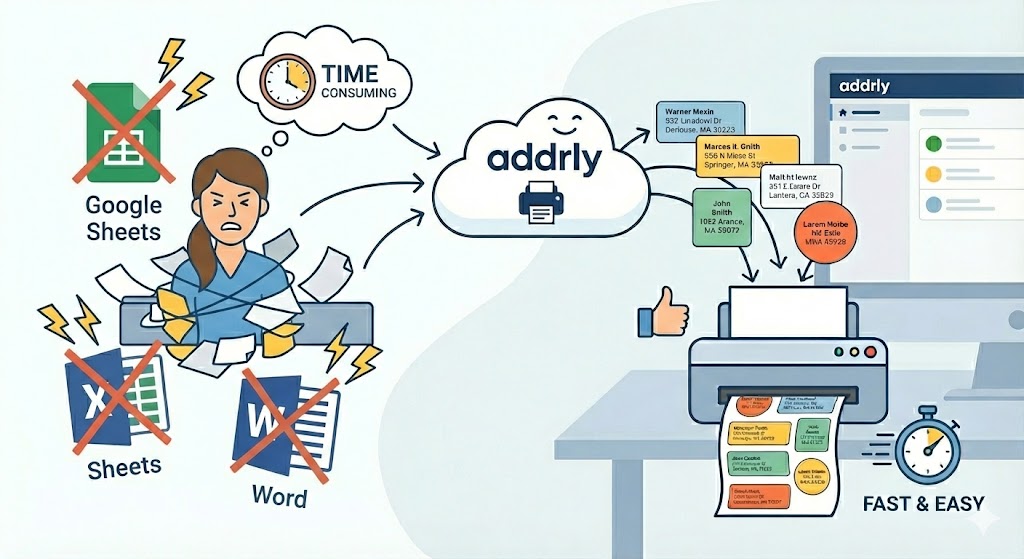
Are you still struggling with printing address labels using outdated methods? If you've ever spent hours wrestling with Microsoft Word's mail merge only to find that your margins are off, or if you're tired of navigating through clunky, complicated software interfaces just to print a single blurry label, you are not alone.
The Pain of Traditional Label Printing
For many users, printing a simple address label is a surprisingly frustrating task:
- The "Margin" Madness: You set everything up in Word, but when you print, the text is cut off or misaligned because of hidden margin settings.
- Clunky Interfaces: Most label software looks like it was built in the 90s. Finding the "Print" button or changing a font feels like a puzzle.
- Blurry Results: Traditional tools often generate generic PDF output that doesn't scale well to high-DPI thermal printers, resulting in fuzzy, unprofessional text.
It shouldn't be this hard. Printing an address label should be as easy as sending an email.
Enter Addrly: The Modern Solution
Addrly brings address label printing into the modern era. We designed our interface with one goal in mind: Simplicity without sacrificing power.
- Modern, Fashionable UI: A clean, intuitive interface that puts exactly what you need right at your fingertips. No clutter, no confusion.
- Thermal Ready: Whether you use a Rollo, Zebra, Dymo, or any other thermal printer, Addrly uses advanced printing technology to drive your printer's full resolution.
- Crystal Clear: We push print clarity to the limit. Your labels will look crisp, professional, and easy to read.
How to Print Your First Label in Seconds
Forget about complex setups. Here is how you can go from zero to printed label in four simple steps using Addrly.
1. Copy & Paste Your Address
There is no need to manually type everything out if you have the address in an email or document.
- Simply copy the full address block from your source.
- Paste it directly into the Address Editor box in Addrly.
- The software automatically handles the lines, so what you see is what you get.
2. Select a Professional Template
Why start from scratch? Addrly comes with built-in templates designed for readability and style.
- Browse the Template List on the side.
- Click on a template to instantly apply a layout.
- Whether you need a compact shipping label or a spacious address card, there is a template for you.
3. Define Your Label Size
Don't let software dictate your paper size. Addrly gives you full control.
- Navigate to the Label Size settings.
- Enter your exact width and height (e.g., 60mm x 20mm, 70mm x 30mm).
- Adjust your margins (top and left) visually.
- Rotate the canvas 90 degrees if your printer requires it.
4. Customize & Polish
Make it look exactly how you want with our powerful text tools:
- Global Styles: Set standard fonts and alignments for the whole block.
- Fine-Tuning: Select specific lines (like the Recipient Name) to make them Bold or larger.
- Text Attributes: Tweak the Line Height and Letter Spacing to ensure the address fits perfectly without overcrowding.
- Transform: Need the state code in uppercase? Use the Text Transform tool to instantly switch to UPPERCASE.
5. Click & Print
Once you are happy with the preview on the right (which is a real-time representation of your print), simply click the Print button.
- Addrly communicates directly with your printer driver.
- Supports high-speed batch printing if you ever need to do more than one.
Ready to upgrade your labeling workflow? Addrly isn't just for single labels. It is also the ultimate tool for Batch Printing directly from QuickBooks Online and CSV/Excel files, solving the "Excel Shuffle" for high-volume shippers.
Experience the difference of a modern label printer today.