
For small businesses and online sellers, efficient shipping and mailing processes are crucial. Whether you are sending out invoices, holiday cards, or product shipments, typing out addresses one by one is a bottleneck you cannot afford.
While many hardware providers (like TSC) offer excellent printers, the software workflow often leaves much to be desired. You might find yourself trapped in a cycle of exporting data, fixing formatting errors, and struggling with "Mail Merge" tools just to get a simple sticker.
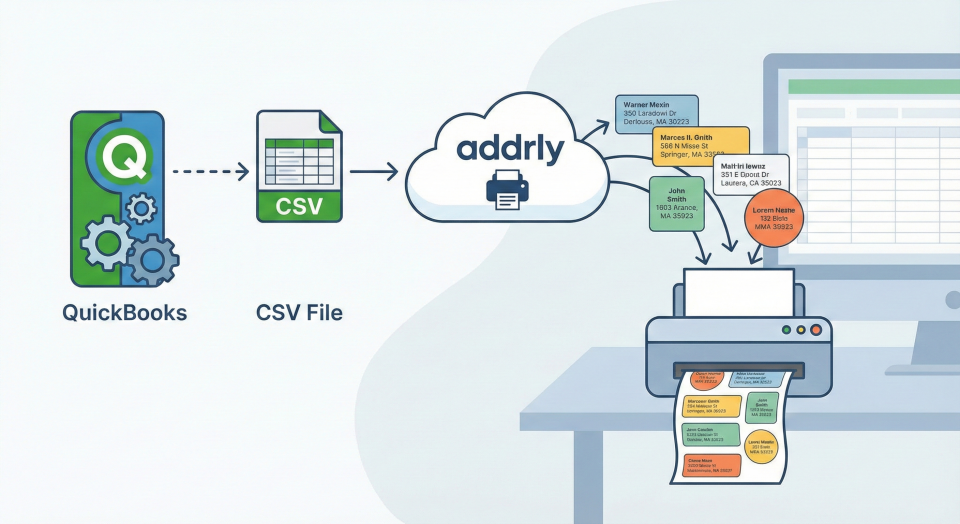
Addrly solves this by allowing you to batch print labels directly from your source of truth—whether that is QuickBooks Online or a standard CSV file.
In this guide, we will walk you through the exact steps to generate professional address labels in bulk, saving you time and eliminating manual errors.
Method 1: Batch Print Directly from QuickBooks Online
If you use QuickBooks Online, Addrly allows you to import your customers directly into your address book for batch printing.
Step 1: Connect Your Account
- Open Addrly and navigate to Settings > QuickBooks.
- Click Connect and authorize access. This allows Addrly to securely read your customer data.
Step 2: Import Customers
- Go to the Address Manager page.
- Click the QuickBooks icon (Import from QuickBooks) in the top toolbar.
- Your QuickBooks customers will be listed. You can select specific customers or "Select All".
- Click Import Selected to add them to your Addrly address book.
Step 3: Batch Print
- Navigate to the Batch Print page via the sidebar menu.
- Use the search bar to find the addresses you just imported.
- Check the boxes next to the customers you want to print labels for (or use the "Select All" button).
- Configure your print settings (Printer, Template) in the right panel and click Start Print.
Method 2: Batch Print from a CSV File
If you manage your data in other systems (like Shopify, Excel, or a CRM), you can batch print by importing a CSV file.
Step 1: Prepare Your CSV File
- Go to the Address Manager page and click the CSV icon (Import CSV).
- Click Download Sample CSV to get the correct template.
- Fill in your data matching the sample format (Name, Company, Street, City, State, Zip, Country).
- Save the file as a .csv format.
Step 2: Import to Addrly
- In the CSV Import panel, click Select File and choose your prepared CSV.
- Review the imported list to ensure the addresses look correct.
- Click Import to save them to your address book.
Step 3: Select and Print
- Navigate to the Batch Print page.
- Select the uploaded addresses from the list.
- Choose your label template and click Start Print.
Why Choose Addrly for Batch Printing?
- QuickBooks Integration: Seamlessly import customer data directly from QuickBooks without manual entry.
- Easy CSV Import: Simple templated import process for data from any other system.
- Universal Compatibility: Support for thermal printers (Rollo, Zebra, TSC) and standard desktop printers with perfectly formatted PDFs.
Conclusion
Stop wasting time on manual entry. Whether you are an accountant sending documents or a retailer shipping products, batch printing is the key to efficiency.
Ready to start printing? Download Addrly and try the batch print feature today.